Send guests their add-links and reminders
Choose when each guest's link to their pass goes out, send it to everyone at once, and let reminders go by themselves.
Each guest has their own add-link: a link that opens their pass, ready to add to Apple Wallet or Google Wallet, with their bidder number and table. Paddlit sends it by email, and by text to guests who've agreed to texts.
Choose when links go out
- Open the event and choose the Settings tab.
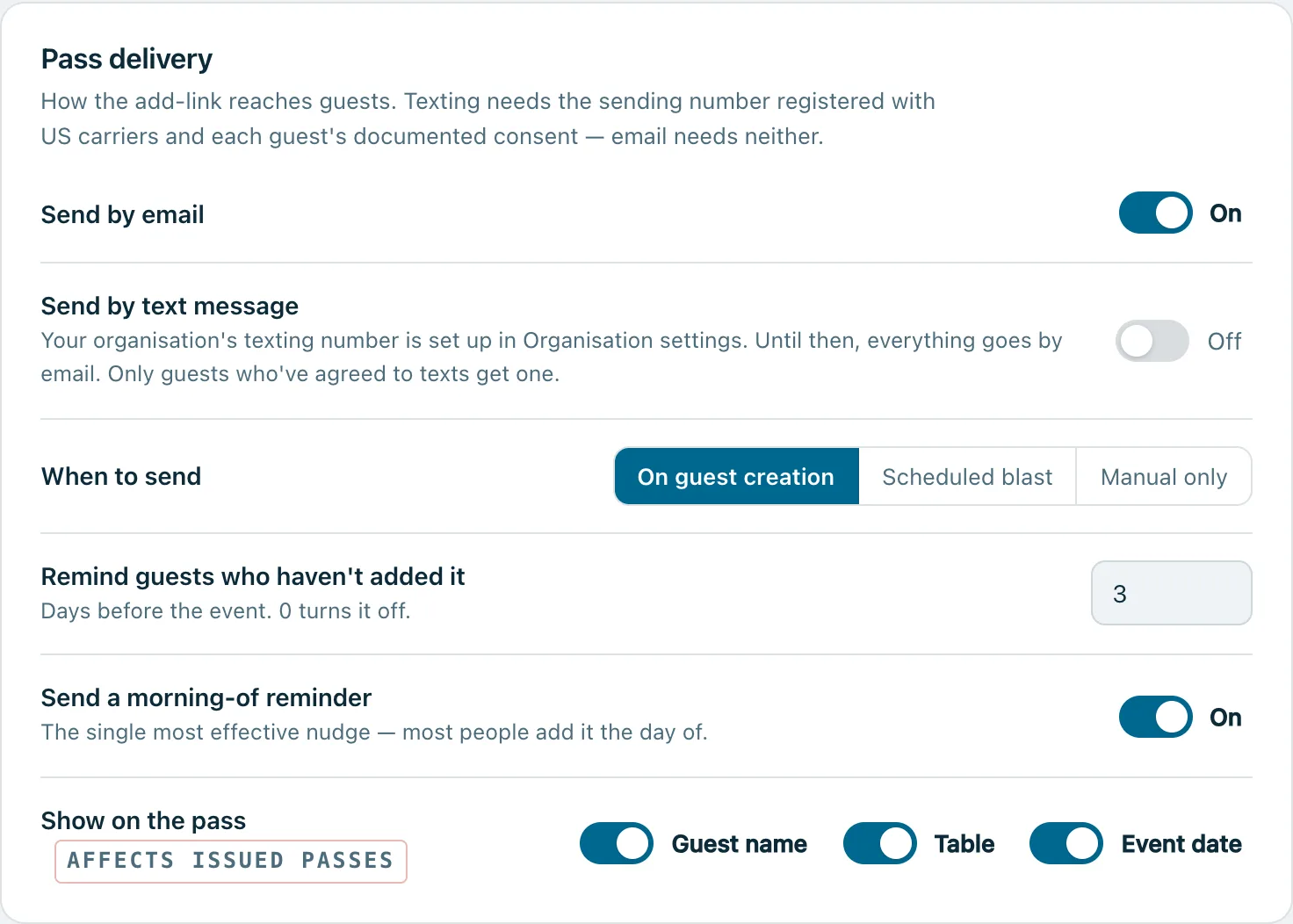
- Go to Guests and passes › Pass delivery.
- Choose how: Send by email, and Send by text message if your organisation's texting number is set up.
- Under When to send, choose one of the three below.
- Press Review & save, then Save changes.
- On guest creation: each guest gets their link as they're added.
- Scheduled blast: pick a Blast date. Everyone without a pass gets their link that morning, from 9am in the event's time zone.
- Manual only: nothing goes until you send it.
Links only go out while the event is Open or Live. Nothing is sent while it's a draft.
Reminders that send themselves
In the same place, two reminders go only to guests who haven't added their pass yet:
- Remind guests who haven't added it: how many days before the event, from 10am. It starts at 3; choose up to 30, or 0 to turn it off.
- Send a morning-of reminder: on the morning of the event, between 8am and 4pm. It's on unless you switch it off.
Scheduled reminders and the scheduled blast come with some plans. On a plan without them, the settings show which plan has them.
Send to everyone at once
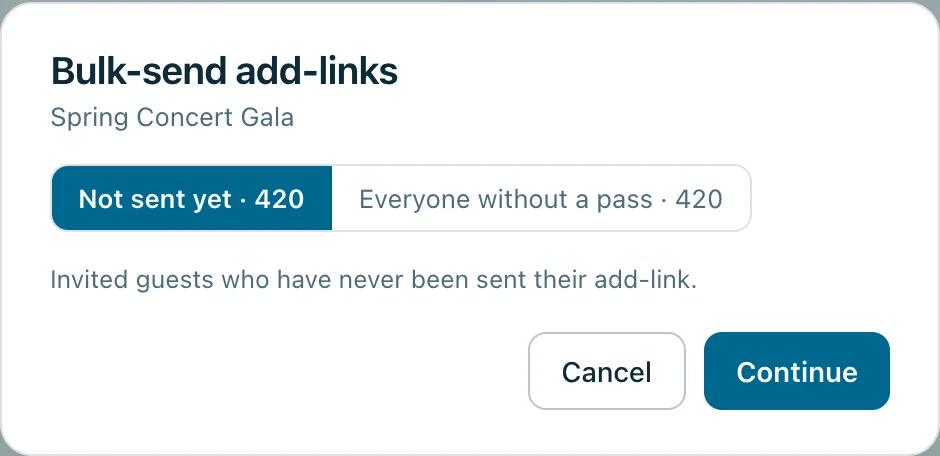
- Open the event's Guests screen and press Bulk-send add-links.
- Choose Not sent yet (guests who've never been sent their link) or Everyone without a pass (a reminder, with the same link, to every guest still marked Invited). Each shows how many it will reach.
- Press Continue. The next box says how many will get it, and who's skipped because there's no email or text-enabled phone for them.
- Press Send add-links or Send reminders.
Send one guest their link
On the guest's row, press Pass link. You'll see their code, which they can scan with their phone's camera, and their link. Press Copy link to share it yourself, or Send add-link to send it to them. Door volunteers can do this too.
See who has opened it
The Guests screen shows what happened to each guest's latest email, and how many have added their pass. Use the Didn't open and Bounced filters to find the guests to chase.
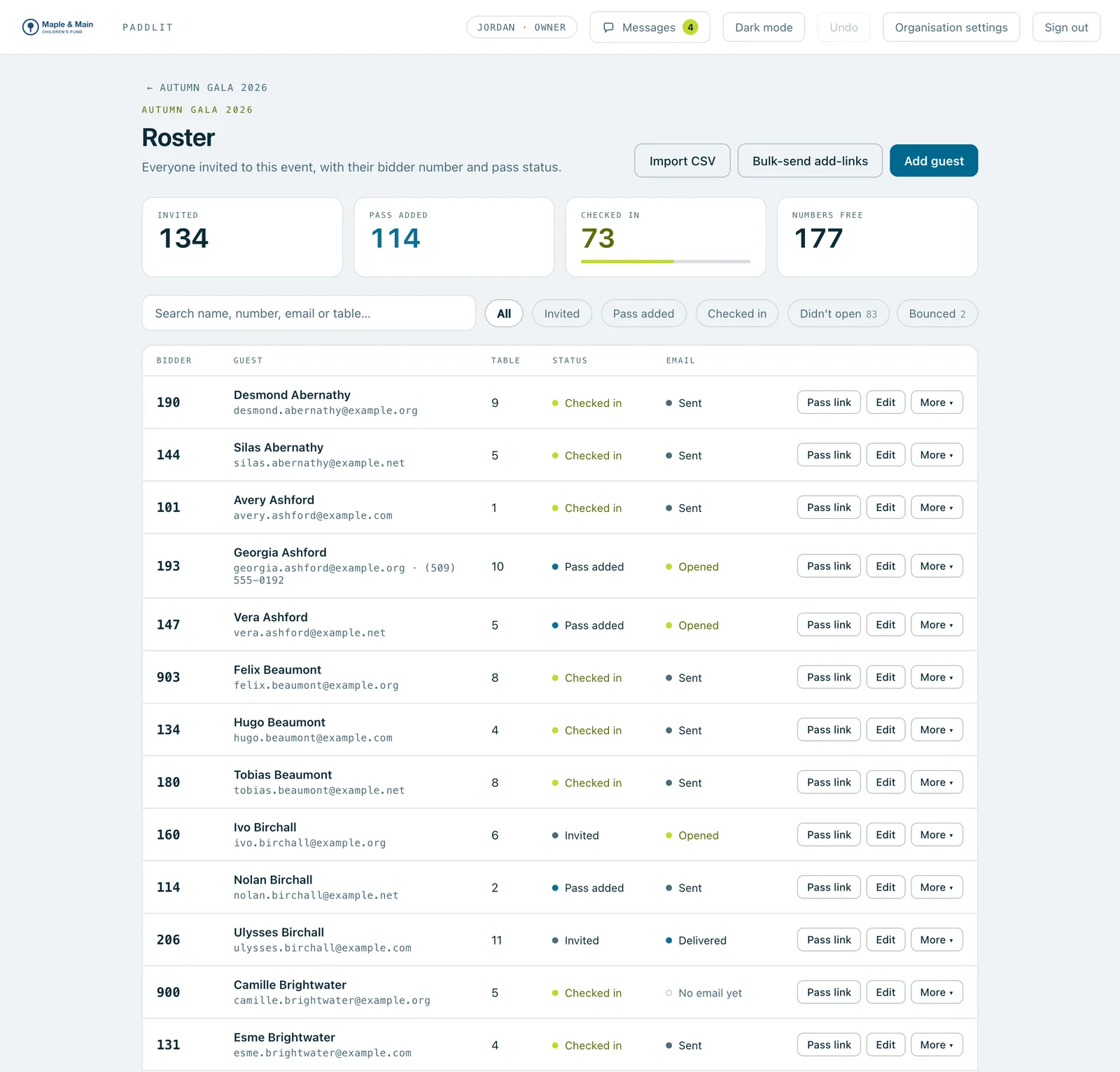
Real screenshots of Paddlit, taken with a made-up organisation, Maple & Main Children's Fund.
Thanks for telling us.
Sorry it didn't. Sign in and get help, or ask without signing in.