Create an event and set it live
Make a new event, then move it from Draft to Open to Live, and close it after the night.
Every event starts as a Draft. You move it on through Open and Live as the night gets closer, and Closed when it's over.
Create an event
Owners create events.
- On your events page, press New event.
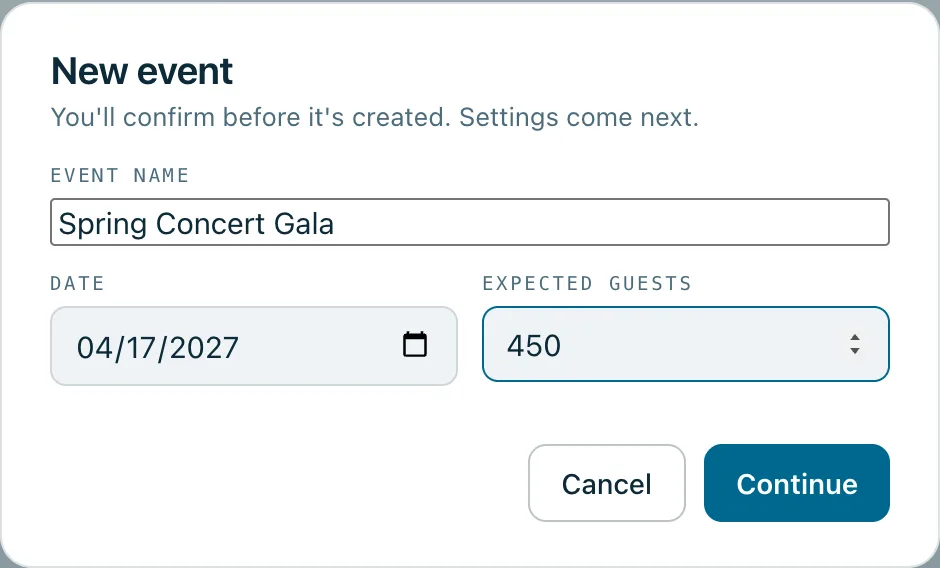
- Type the Event name, the Date and how many Expected guests you think will come, then press Continue.
- Press Create event. The event opens on its settings, ready for the rest of the details.
Running the same event again? Press Duplicate on last year's event instead. It copies the setup (tables, bidder numbers, delivery and door rules, preset amounts, the big screen and the volunteer list) but not the guests, passes or pledges. Set the new date before you open it.
What each status does
- Draft: nothing is sent, and no guest link works yet.
- Open: guests' links work, and links and reminders can go out.
- Live: check-ins and pledges are taken. Use this on the night.
- Closed: the night is over. Door volunteers and pledge collectors are signed out of the event and can't sign back in.
Change the status
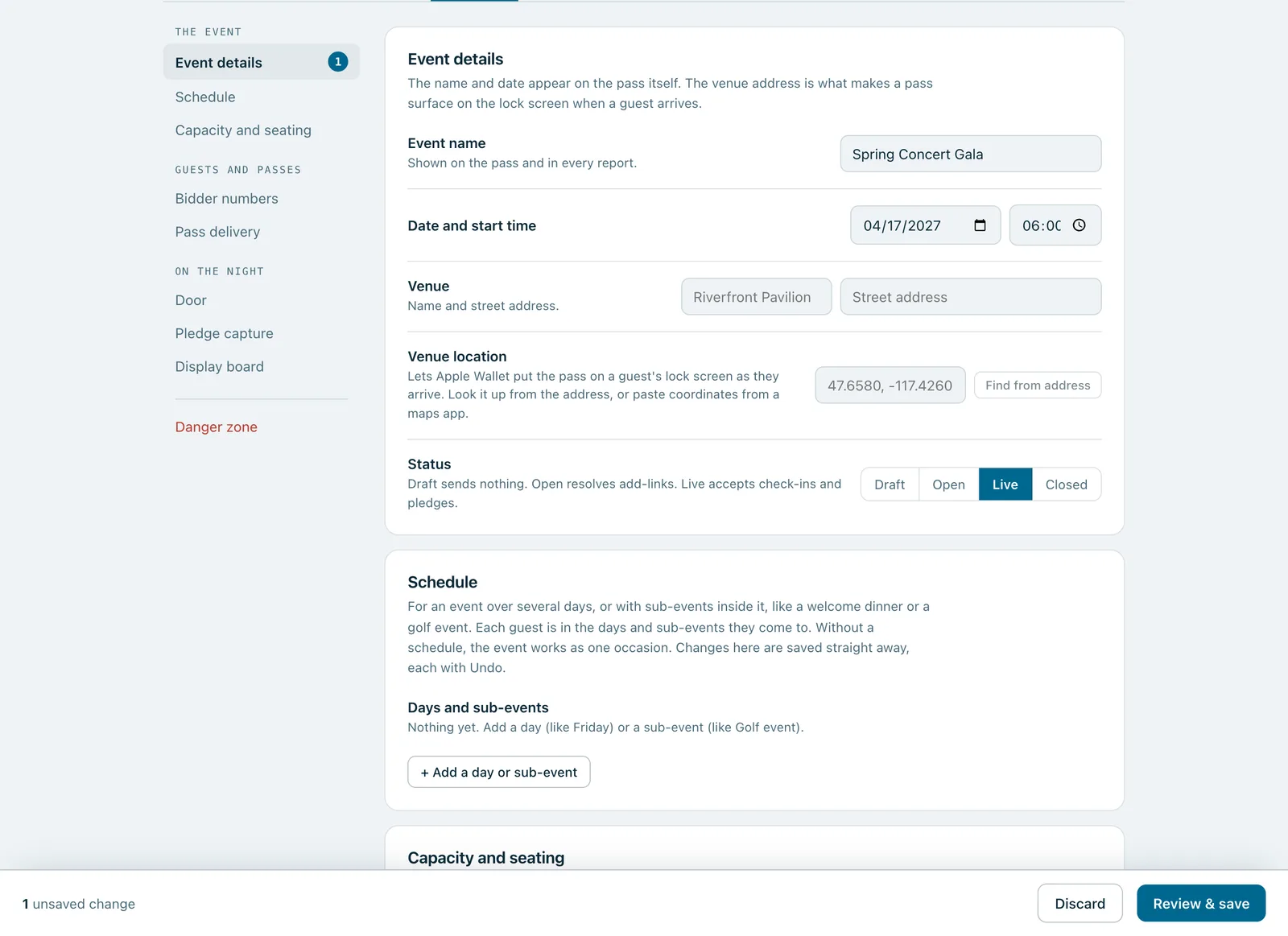
- Open the event and choose the Settings tab.
- Under The event › Event details, find Status and choose Draft, Open, Live or Closed.
- Press Review & save, check the list of changes, then press Save changes.
Good to know
Until the event is Live, the door can search the guest list but can't check anyone in, and pledges can't be locked in. Both screens say so.
To put an event away, use Archive on your events page, or Archive this event under Danger zone in its settings. Its links and passes stop working, and everything is kept. You can restore it later.
Each plan allows a set number of events a year. If you've reached it, the screen says so when you try to create another.
Real screenshots of Paddlit, taken with a made-up organisation, Maple & Main Children's Fund.
Thanks for telling us.
Sorry it didn't. Sign in and get help, or ask without signing in.