Invite your team and choose their roles
Add volunteers to an event, pick what each one does, and make another person an owner.
Your team is invited event by event. Each person gets one or more roles on the event, and the role decides what they see. Volunteers are unlimited on every plan.
The roles
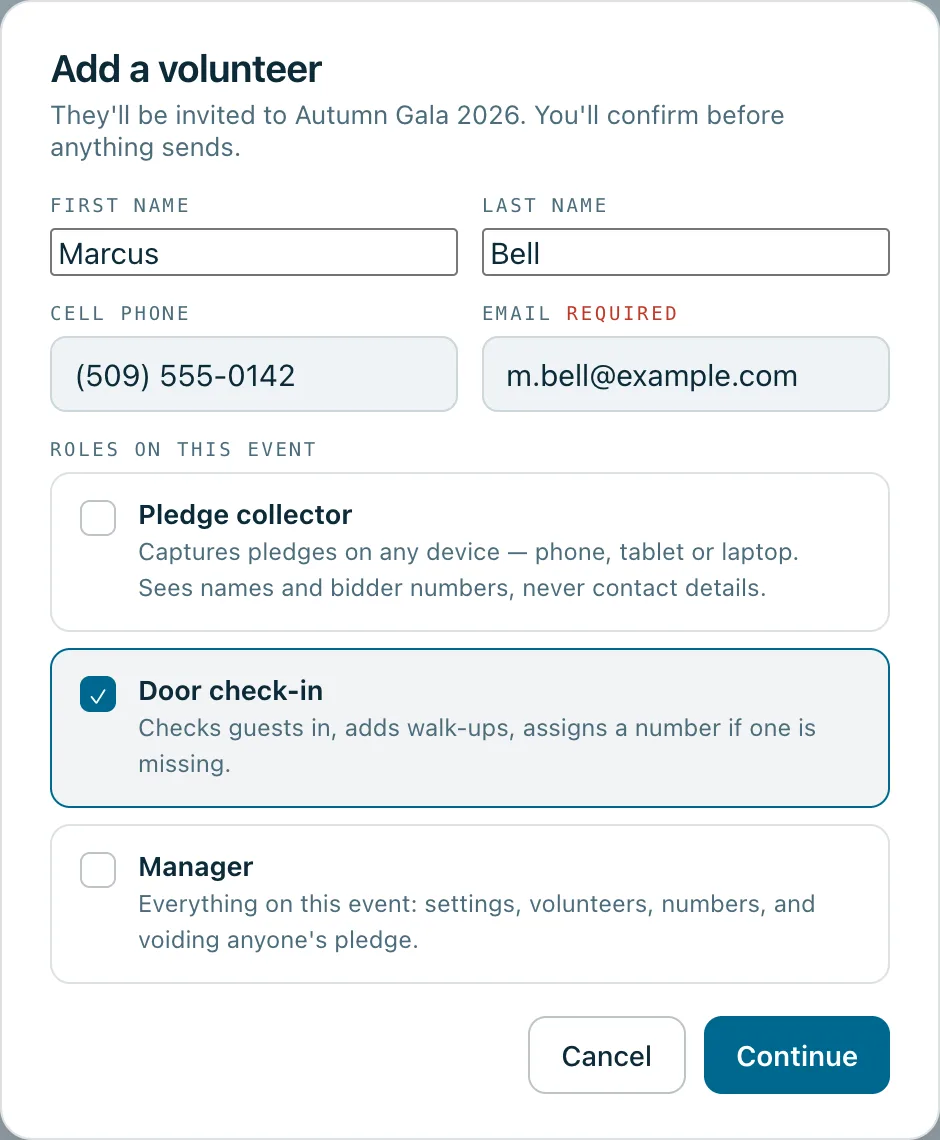
- Pledge collector: takes pledges on any device: phone, tablet or laptop. Sees names and bidder numbers, never contact details.
- Door check-in: checks guests in, adds walk-ups, and gives a guest a number if they don't have one.
- Manager: everything on the event: settings, volunteers, numbers, and voiding anyone's pledge. A manager can also do everything a collector and the door can.
- Owner: everything across your organisation, including creating and deleting events. Owners aren't chosen per event.
Someone can have more than one role on the same event, such as Pledge collector and Door check-in. The event's Roles tab shows exactly what each role can do.
Invite someone to an event
- Open the event and choose the Volunteers tab.
- Press Add volunteer.
- Type their first and last name and their email address. Add their cell phone if you'd like the invitation sent by text too.
- Tick their roles under Roles on this event, then press Continue.
- Paddlit checks whether they already have an account. Read the box that opens, then press Send invitation.
Someone new gets an email to set up their account. If you gave a cell phone and texting is available, they get a text too. Someone who already has an account gets an email with a Join this event button. Invitation links last 14 days.
Keep track of who's ready
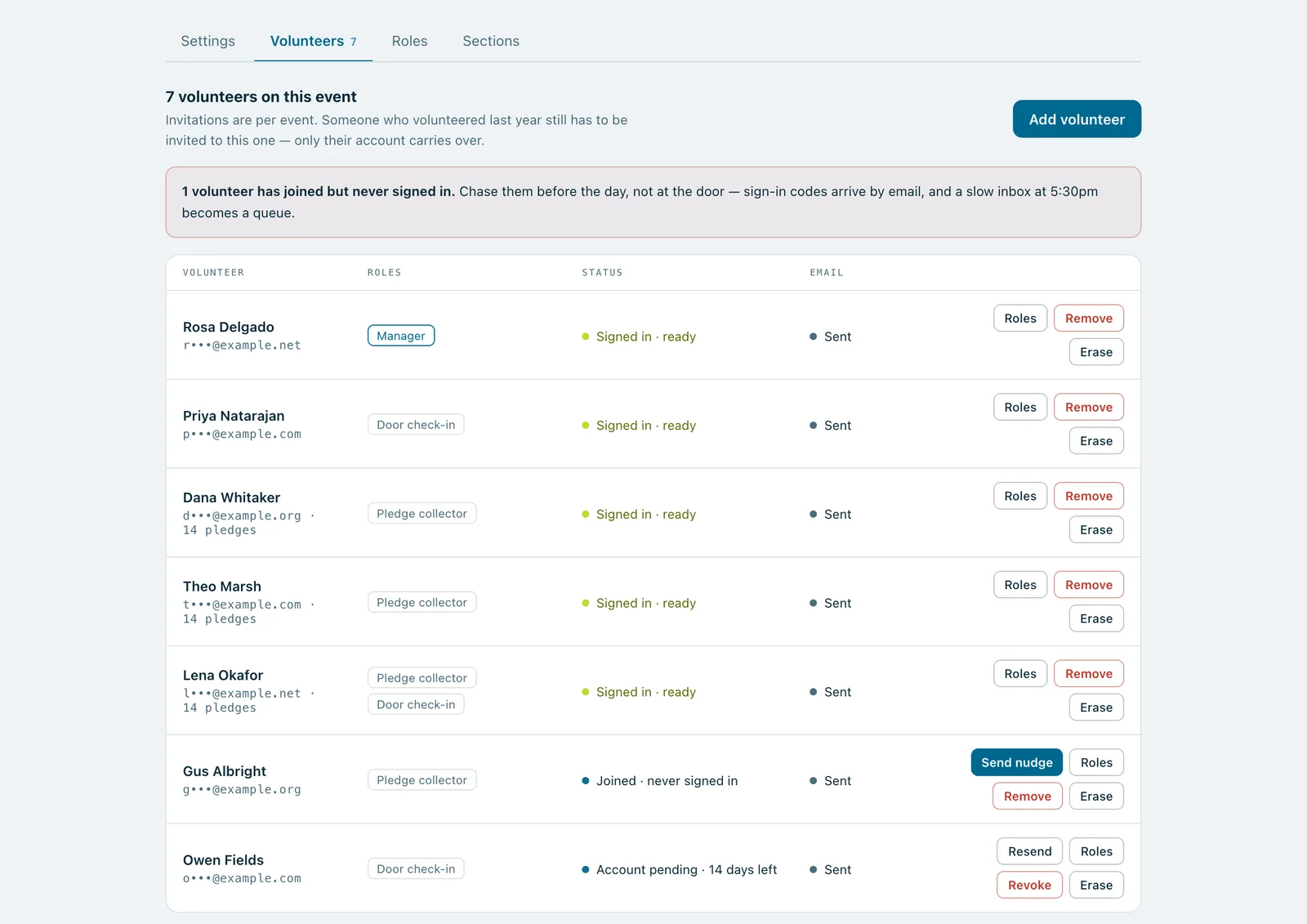
The Volunteers tab shows where each person is, such as Invited · not opened, Joined · never signed in or Signed in · ready. The button on their row does the next thing:
- Resend or Send again sends a fresh invitation link.
- Send nudge reminds someone who joined but hasn't signed in yet to sign in before the event.
- Roles changes their roles.
- Remove takes them off the event, or Revoke cancels an invitation that hasn't been accepted.
The day before the event, from noon, anyone who joined but hasn't signed in gets a reminder by themselves.
Changing someone's roles
Removing a role works straight away. A role you add waits until their next sign-in, so their screen doesn't change in the middle of a shift, and it shows as Role change pending until then. Before they've joined, any change applies straight away.
Make someone an owner
- Go to Organisation settings and find Owners.
- Press + Promote an owner.
- Type the email address on their account and press Promote.
The person must already have a volunteer account. Owners can delete events, guest lists and pledge history included, so promote with care. Each plan allows a set number of owners.
Invitations are per event. Someone who volunteered last year still has to be invited to this one; only their account carries over. Duplicating last year's event brings its volunteers across, ready to invite with one press.
Real screenshots of Paddlit, taken with a made-up organisation, Maple & Main Children's Fund.
Thanks for telling us.
Sorry it didn't. Sign in and get help, or ask without signing in.