Put a donation form on your website
Make a donation form in your colours, for one event or your whole organisation, and add it to your own website with two lines of code.
A donation form lets people give on your own website, in your colours, without leaving the page. Each form is for one event or for your whole organisation. Gifts go straight to your organisation's account, and each donor gets a receipt.
Donation forms need payments set up first. Only owners can make and change them.
Make a form
- Open Donation forms and press New form.
- Give it a name. Only your team sees it.
- Under Gifts go to, choose Your whole organisation for giving all year, or One event, and pick the event.
- Press Make the form.
A new form starts with your colours, "Give to" and your name as its heading, and suggested amounts of $25, $50, $100 and $250, or the event's own amounts from its online giving. No websites are listed yet, so it doesn't show anywhere until you add one.
Design it
On the Design tab, change what you like. The preview beside it changes as you type.
- Words: the heading, a message, the word on the button (the amount is added to it for you) and the thank-you message.
- Amounts: up to six suggested amounts in whole dollars, which one is picked to start with, whether donors can type another amount, and the smallest gift.
- What donors are asked: whether to offer covering the card fee, giving anonymously, a gift in honour or memory of someone, a note to you, and a mobile number.
- Look: In steps (the amount, then the donor's details, then the payment) or One page, your main and accent colours, light or dark, the corners, the width, and your logo.
- After they give: show the thank-you message in the form, or go to a page on one of your listed websites, such as your own thank-you page.
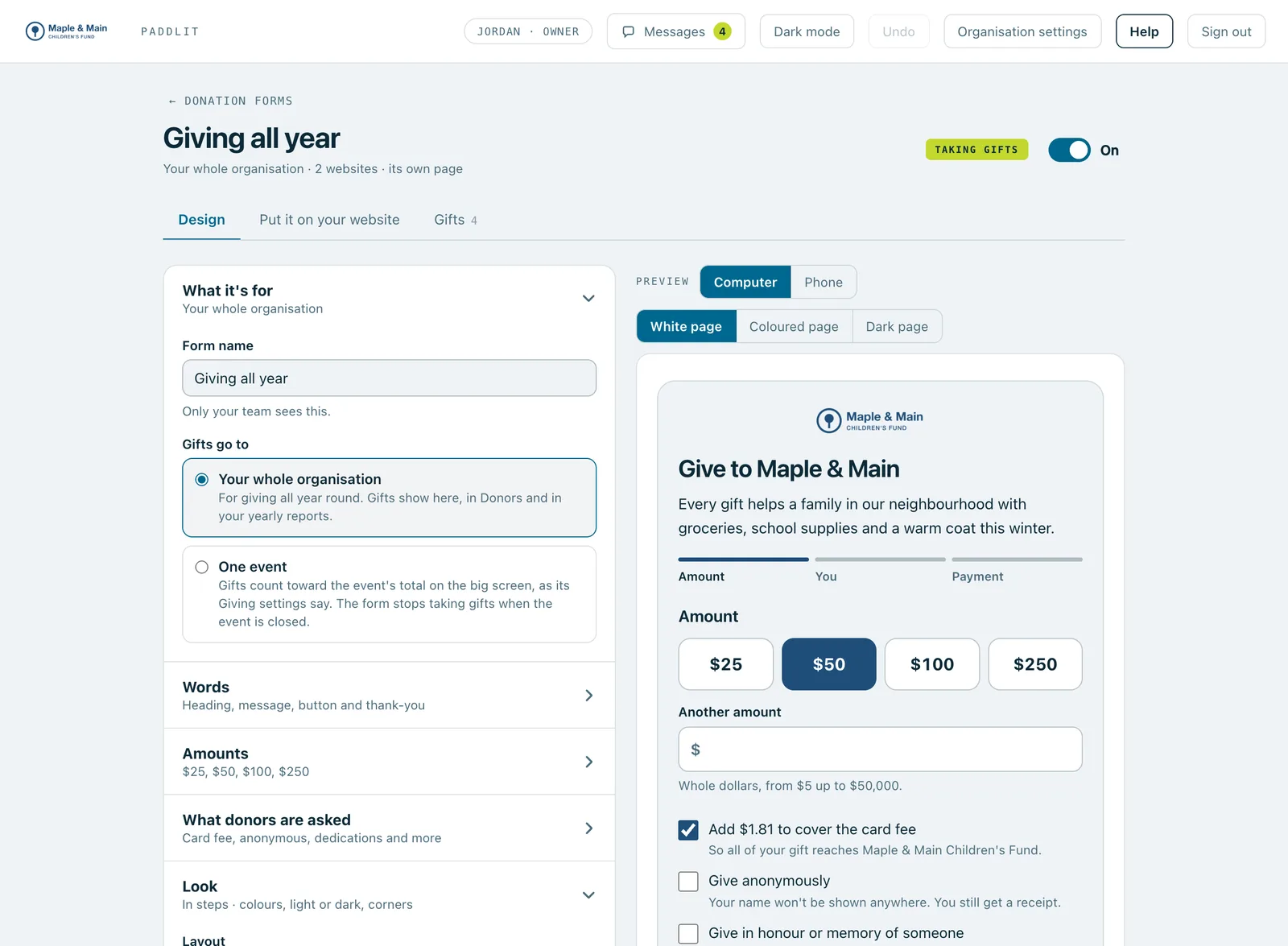
Press Save changes when you're done. Your website shows the new version straight away, without changing its code.
List your websites
Under Where it can appear, add each website that may show the form, up to ten, as you see it in your browser's address bar (for example www.yoursite.org). The version with or without "www." is added for you. Each website needs a secure address, the kind with a padlock in the browser.
The form only appears on the websites you list. Anywhere else it won't show, even if someone copies the code. Remove a website and save, and the form stops appearing there.
Add it to your website
- Open the Put it on your website tab and press Copy to copy the two lines of code.
- On your website, open the page for the form and add an HTML or code block where it should go.
- Paste the two lines into it and publish the page.
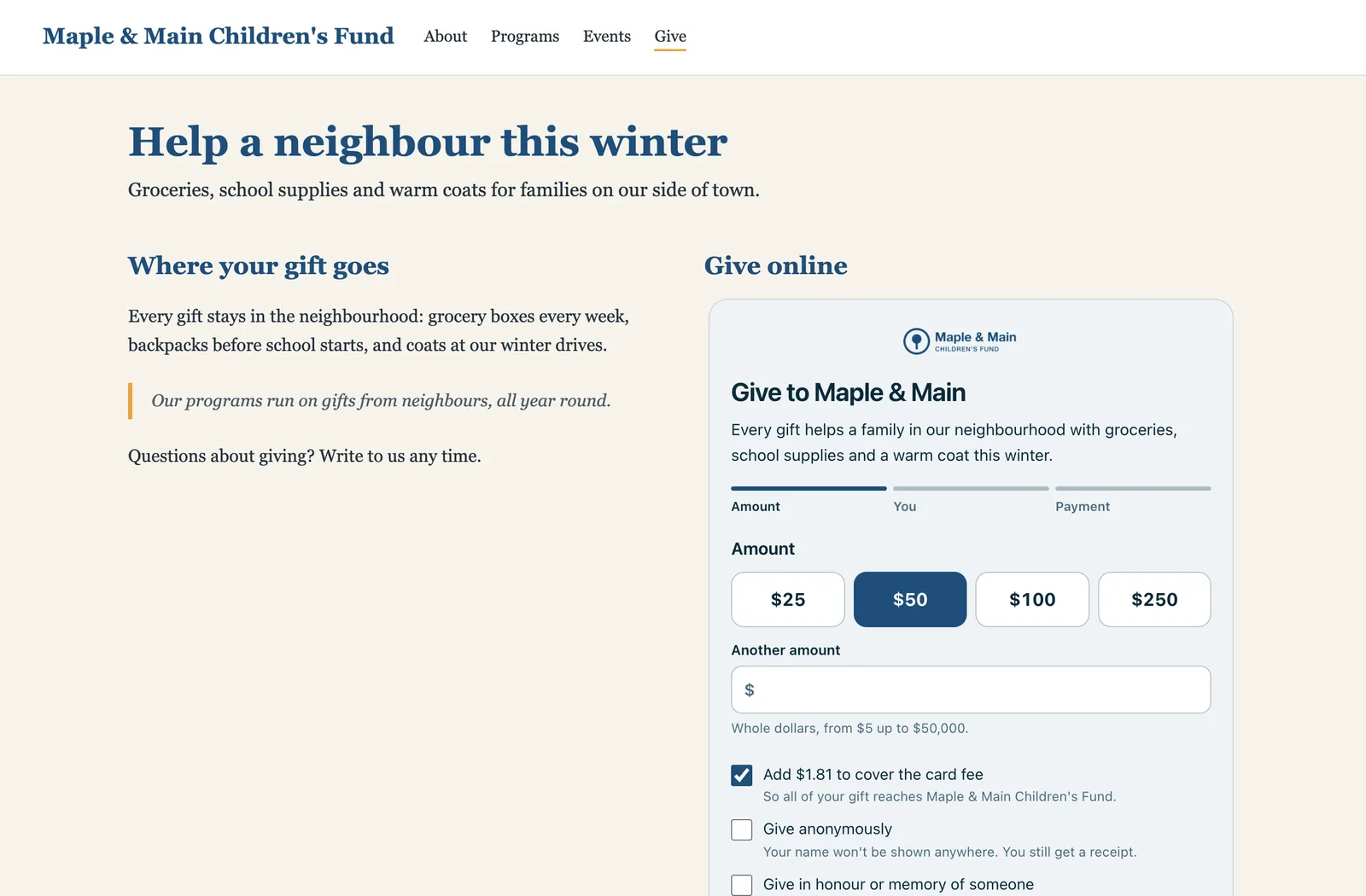
The two lines never change. When you save new words or colours, your website shows them by itself.
If your website says the form can't be shown there yet, check that the website is listed under Where it can appear, and save.
Its own link
Switch on Its own page under Where it can appear to give the form a link of its own, for emails and social media. It's the same form on a page by itself. Press Copy the link on the Put it on your website tab to share it.
Pause or remove a form
Switch Taking gifts off to pause the form. Your website then shows a short line saying the form isn't taking gifts right now. Switch it back on when you're ready.
A form for an event takes gifts once the event is open. When the event has finished, the form says so and stops taking gifts.
To stop using a form for good, press Remove this form at the bottom of the Design tab. Websites with its code show a short note instead, and its own page closes. Its gifts stay. This can't be undone, and a new form gets new code.
Gifts and refunds
Every gift on your forms is listed on the Donation forms screen: who gave, the form, the website they gave on (or its own page), the amount and whether they covered the card fee. Your team sees donors' names even when they gave anonymously, along with any dedication and note.
Open a gift to Send the receipt again, or press Refund…, say why, and refund it in full back to the card. Refunds can't be undone.
Gifts also show in Donors. A gift in honour or memory of someone says so on the donor's receipt. A gift on an event's form counts toward that event's total on the big screen, as its Giving settings say.
Plans
Donation forms come with the Event Pass, Standard and Pro. On the Event Pass, forms are for that pass's event. Forms for your whole organisation come with Standard and Pro.
Real screenshots of Paddlit, taken with a made-up organisation, Maple & Main Children's Fund.
Thanks for telling us.
Sorry it didn't. Sign in and get help, or ask without signing in.