Print name stickers and wristbands
Zebra label printers, what each sticker shows, and why iPads and iPhones can't print them.
The door can print a name sticker for each guest on a Zebra label printer: a 4 × 2 inch sticker, or a 1 × 10 inch wristband. You can print one when you choose, or have one print by itself at every check-in.
What you need
- A Zebra label printer, switched on and plugged in (or joined to your network).
- A Mac, a Windows laptop or an Android tablet at the door. iPads and iPhones can't print labels.
- Zebra Browser Print, Zebra's free printing app, installed and running on that device. When it asks whether to accept the Paddlit website, choose Yes.
- Chrome. Printing doesn't work in Edge, and printing from Safari needs extra setup.
Steps
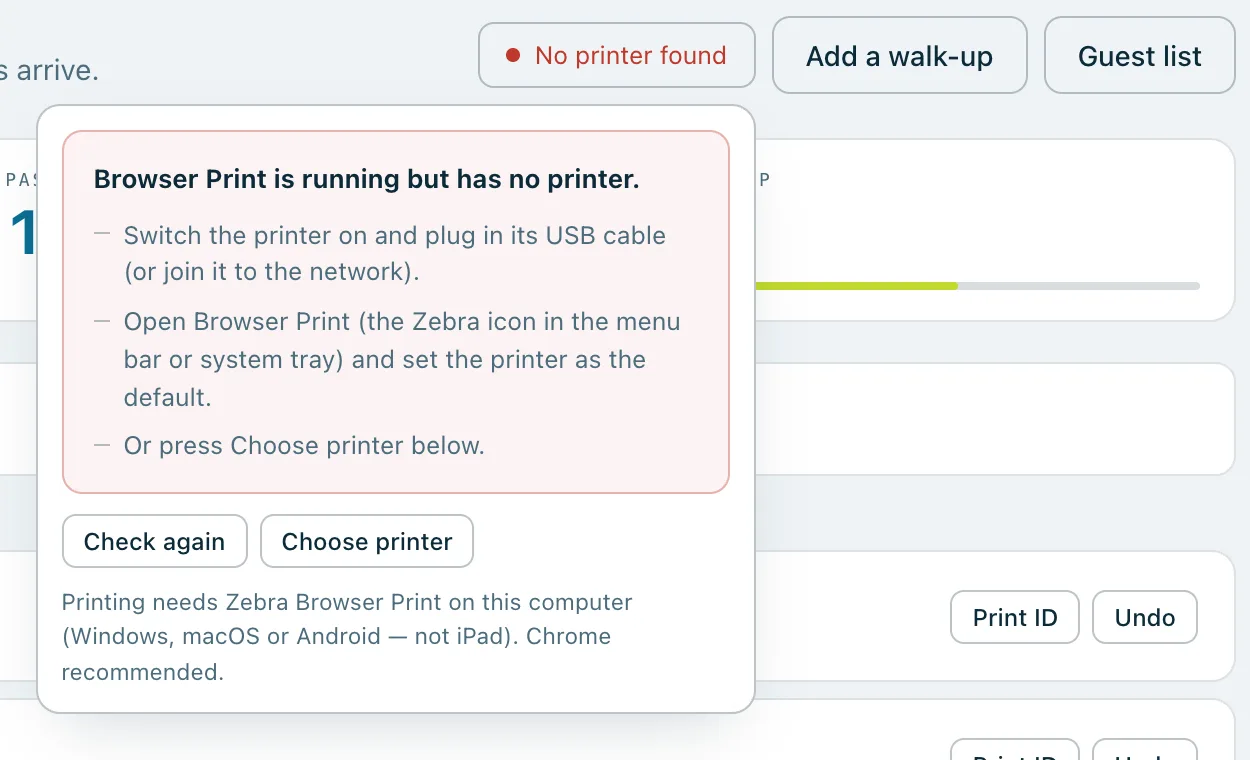
- Open the door screen. At the top, the printer button says how the printer is, such as Printer ready with the printer's name.
- If it shows a problem, press it. It says what's wrong and how to fix it, with Check again and Choose printer buttons.
- Check a guest in. Their row now has a Print ID button. Press it to print their sticker.
- To print it again, press Reprint ID on their row.
What a sticker shows
- The event's name and year, with your logo at the top if you've chosen to show it.
- The guest's bidder number in large type, and their name.
- Their table, NO TABLE if they don't have one yet, or GENERAL ADMISSION when the event doesn't use tables.
- A code that matches the one on their wallet pass.
- WALK-UP for walk-ups, and R2, R3 and so on for reprints.
Settings
- Print automatically at check-in: a manager can switch this on in the event's Settings, under On the night › Door. Then a sticker prints each time a guest is checked in, and Reprint ID stays on their row in case you need another.
- Printed guest ID: in the same place, choose 4 × 2 sticker or Wristband.
- Logo on name stickers: an owner can switch this on in Organisation settings, under Name stickers. Your logo is printed in black. Wristbands don't have a logo.
If something goes wrong
Paddlit checks the printer before and after each label, and never says a sticker printed when nothing came out. If the printer is out of labels, its lid is open or it's paused, the message says so and what to do. If that happens while a label is printing, look whether it came out before you print it again.
Name stickers come with some plans. On a plan without them, the door screen shows which plan has them.
Real screenshots of Paddlit, taken with a made-up organisation, Maple & Main Children's Fund.
Thanks for telling us.
Sorry it didn't. Sign in and get help, or ask without signing in.